Interview with a Material Artist

General / 24 May 2022

This year I have been almost 10 years in the games industry and wanted to share my ideas and answer questions that I have gotten over the years but didn't get to answer. Hopefully my blogpost will inspire you and help you find your way within the industry or maybe even help you find your niche?
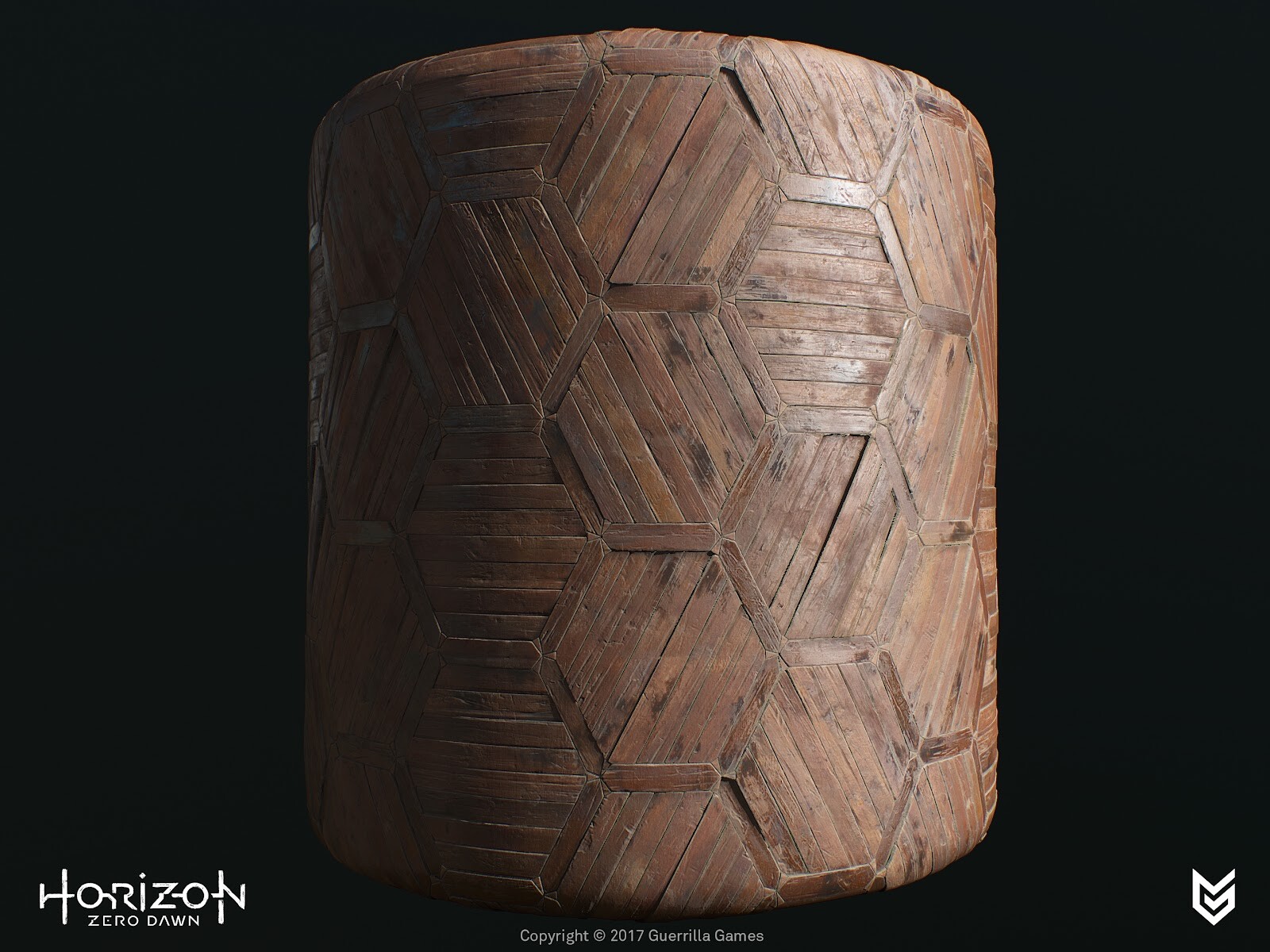
How did you get into such a cool IP as Horizon? What sort of brought you in this direction?
Back in 2012 I was already an intern at the studio, a couple of years before I rejoined in 2014, however during my internship I did see some early concept art for this new IP now called Horizon. When I was about to join the team I didn't know for sure which project I'd be working on but, as you can imagine, I had my suspicions. Back then I was mostly working on assets or environment-art but was also looking into creating shaders and material expressions. This technical interest landed me the shader/texture artist position and started delving deeper into this area of expertise over the last couple of years.


What was your general approach to assets in this production? You’ve had quite a tricky task, building all those amazing materials. How did you decide to tackle this?
During the concept phase there were already a whole lot of reference images available (collected by our talented Concept-Artist and Directors) but also my Art-Director had specifications of what he was looking for. The target was to blend this look from the proposed Concept Art and the requirements of the Environment-team/Art-Director(s) and of course I had my own input. From these reference images I have created a huge reference sheet with everything I found interesting per image and from there we picked and chose which characteristics we liked and added callouts to highlight what we felt was necessary to sell the idea of the materials. This really helps to get everyone on board with the exact look we were going for.For any artist I'd suggest; always try to collect images to build your own material library, this can be Pinterest or snapshots on holiday. I do this and then after one or two years, I delete everything and refresh my entire collection.
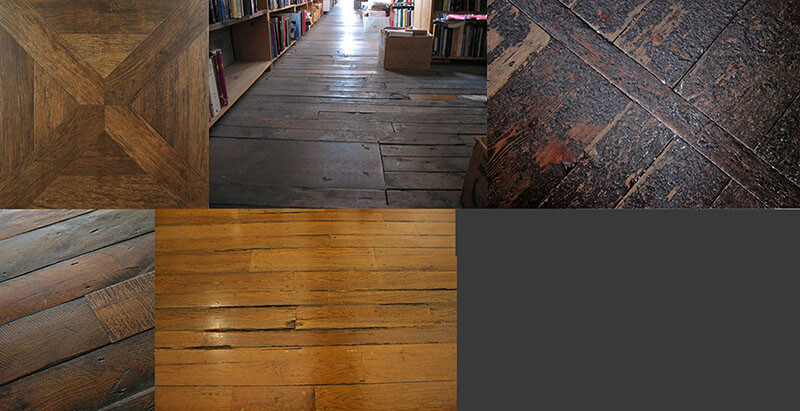
Ref images
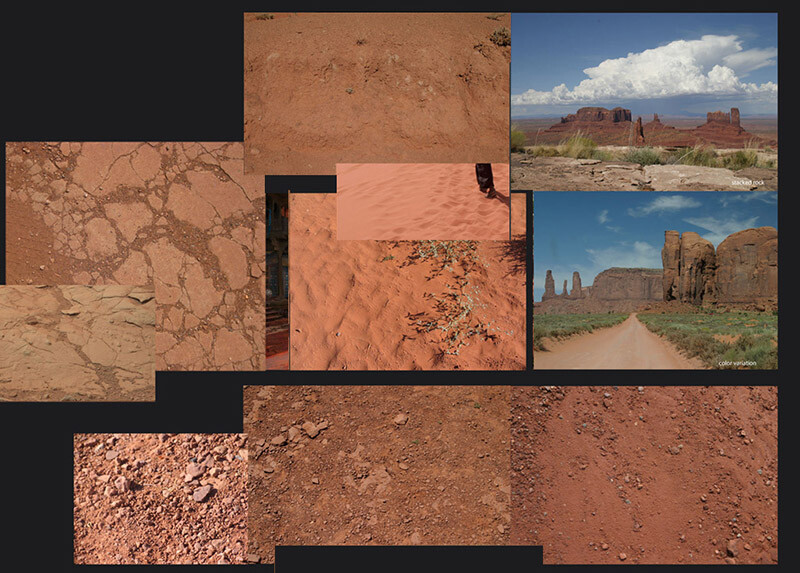
Ref images


You were using Photoshop and ZBrush to craft all those amazing textures. Could you talk in more detail how it all worked?
During the development of previous projects we worked with high poly sculpts in Zbrush to generate detailed heightmap information from those. But when we started implementing Substance with a few textures to get a feel of the program and its workflow. For example with a gravel texture, we generated tiny pebbles and added multiple stacks with offsets and a variety of scaling to make it look more interesting and finalize it with some photo overlays and color correction in Photoshop. 

No matter which program or tool we used, we always focused on getting the height information correct first, before diving into the Color and Roughness values too much. For some textures it felt more comfortable to generate the content in Zbrush as it gave me complete control per brick (or had to match with pre-existing assets/models), I was able to put each brick at an angle or give it height differences to give it some nice parallaxing effect. The downside was: it’s very time consuming. For texturing the albedo/diffuse we tried several approaches, for example: polypainting the bricks in zbrush but we had to keep such a high polycount that Zbrush became unworkable and too little poly density would result in a lack of detail. Then we used Photoshop but now that Substance expanded their libraries a lot is possible now, that wasn't before. I would've picked up a hybrid approach, generated high poly mesh and generated the diffuse and roughness in Substance.


You’ve mentioned that you choose Photoshop because of more control over the subtleties in color/height variation. Why was this more important to you? I mean you could have gotten very similar results Procedurally.
In hindsight I probably could have pulled off a similar result. As the height information was the most important to me, it really sold the textural details and state of the bricks and ultimately sold the believability of the material. In the reference images that were collected, it showed me the importance of all the states of decay that were having subtle tonal variety and height values.

Timelapse of focusing on the height information first.Before adding diffuse/roughness.


How did you make these materials tile in such a beautiful manner? Did you use some other tools to scatter the rocks here and other little things?

With a bit of planning and proper mesh setup, you can easily offset your subtools and align them so it’s tiling perfectly (especially now with Substance Designer in our arsenal). Getting the scale right versus the right amount of detail and uniqueness is tricky. Each brick was placed as a unique subtool, so it could easily get warped and moved around. We iterated many times on the brick layout to get the right feel before we proceeded with the Diffuse/Albedo/Roughness maps.

The scattering of rocks was a combination with custom Maya scripts where I could scatter kitbashed rocks or in Substance Designer. Scattering rocks with photo scanned data was interesting to familiarize yourself with generating procedural content and also match it with pre-existing photoreal content.


You’ve done some absolutely stunning work with the brick wall. It’s like the most favorite subject of every texture artist, but your material is something else. Can you tell us, how did you manage to build it in such a way that the brick wall actually has information about 3 types of bricks: old, worn down and new. 

Planning was very essential for this to succeed. First we started blocking out the intact version of the bricks and tested the look and feel of the layout in-game. We checked for scale, height variation, repeating elements - even a flat color in the albedo with some curvature and ambient occlusion information can help a lot visually to give a feel of the surface and readability over distance.

I then reworked the high poly sculpt and baked out maps for the first pass - I grab all the baked maps, e.g. Position to World Space Normals, custom mat caps in Zbrush. This gives me a wide variety of masking methods I can pick and choose from to create the tonal variety. Blending the Curvature map with the Position map and a random (brick) variation mask, created interesting variations. Next step is to apply more colors by adding photos, mask out bricks based on height or manually select them, add tonal gradients with the HSL slider/node for per brick subtle variations.

For the second material we used the exact same layout in Zbrush and started to replace bricks of the same size or used the well known Dam standard brush or Orb Crack brush combined with a custom alpha mask to split up the bricks or use the TrimSmoothBorder brush to soften the edges (as worn brick does over time). On certain bricks we would add some alpha stamps to make the brick look more damaged. Or by moving some bricks even lower and skewed which emphasized the aging process even more.


How did they help you to nail that beautiful hard surface stuff?

Maarten (Art Director) and I were looking for a way to speed up the texturing process but also maintain the quality that was pushed throughout the game. The two of us decided to delve deeper into the Substance packages and set up custom nodes and materials which also extended our internal Substance library. During this iteration process of creating nodes and testing them, we created a smart material that we could apply to almost all the assets. In 90% of the cases it would get us there and in some cases there were some tweaks needed but it sped up the art creation process quite a lot. Between the two of us we managed to export 45-ish component sets within two days with all the latest smart materials updated and correct masking for detail maps.


How did you work on those wonderful rusty elements in the production? How were these set up? What were the challenges in these assets?

The rusty element was an iterative process of creating custom Substance nodes. First, we started making generic materials with some light wear, tear and discoloration. In the second iteration, we started adding things like dust, dirt and rust. To get the realism we were looking for, we worked on custom mask generators, e.g. rust got stored into its own user-channel, which took Ambient Occlusion and Curvature in mind. With an additional custom node, we can generate streaks based on the rust mask user-channel, this gives us the drips and very long streaks.


Over all, to finalize, how did these materials help to tell the story in the environment? Why do you think they are even important for these humongous productions?

Material expressions are supposed to give the player the idea that they are in a believable world, that it becomes almost tangible. If a material looks ‘off’ it will break that illusion and snap the player right out of the immersion. The materials will tell the story the world is being lived in, it shows age and beauty. But also the interaction between materials, how water affects wood or metal for example or what erosion does to rocks or bricks. No matter how large the production environment is, you can do this kind of environmental storytelling in all sorts of ways.


Day 45 - ⚡️ Quick - Fresnel Effect

General / 02 July 2026

Look at any surface at a grazing angle and it becomes more reflective. That is Fresnel. It is in every PBR shader, and getting it wrong is one of the clearest signals a material is not physically based.


What Fresnel Is

Pick up any object near you. Look at it straight on, then tilt it away until you're viewing nearly parallel to the surface — it gets brighter. Every surface does this, no matter the material. That's the Fresnel effect.

The physics: a surface is an interface between two media. When light hits it, some reflects and the rest refracts. The fraction that reflects depends on the angle. At normal incidence it's at its minimum — that minimum is called F0. At grazing it climbs toward 1 for every surface at every frequency. No exceptions.


F0 - The Anchor

F0 is the specular reflectance at perpendicular viewing. For a dielectric in air:

Most dielectrics are low: water at 0.02, skin at 0.028, plastic and glass around 0.04–0.05. The specular is achromatic — surface color comes from the diffuse response, not reflection.

Metals are different. Their F0 is high (0.5 or above) and tinted across the spectrum. Gold's F0 is (1.02, 0.78, 0.34) in linear — that warm characteristic reflection is F0, not a tint on top of it. Day 21 - 🔬 Deep dive - PBR Compliant Work covers what that physically means.


Schlick's Approximation

The full Fresnel equations aren't practical per pixel. In every PBR shader I've worked in, the Schlick approximation handles it:

At n·l = 1 (straight on) you get exactly F0. At n·l = 0 (grazing) you reach 1. The pow(5) keeps the curve near F0 across most angles and only kicks hard near 90°. The n·l here is the same dot product from Day 43 - 🔬 Deep dive - Dot Product in Rendering.

float3 FresnelSchlick(float NdotL, float3 F0)
{
    return F0 + (1.0 - F0) * pow(1.0 - NdotL, 5.0);
}


Practical Takeaway

Fresnel isn't only an artistic choice, it's a physical constraint every real surface follows. A PBR shader handles it automatically if F0 is set correctly.

  • Dielectrics: F0 between 0.02 and 0.05 covers almost everything. Values outside that range need a reason.
  • Metals: F0 is the specular color. It goes in the albedo map with metalness at 1.0. Not 0.9, not 0.5.
  • The forbidden zone: Linear F0 between ~0.2 and 0.45 doesn't correspond to any real substance. Flag it.
  • The grazing rise is free: You don't paint it in or control it. Set F0 correctly and Schlick handles the rest.


© 2026 Stefan Groenewoud - All views are my own, not those of my employer.

Day 44 - ⚡️ Quick - Lerp

General / 01 July 2026

Think of it like Photoshop's opacity slider between two layers: at 0 you see one, at 1 you see the other, anywhere in between you get a blend. Lerp, Linear Interpolation, is that same operation as a shader node. In shaders, the blend factor t can be a constant, a mask texture, an animated value, a dot product result, whatever drives the blend you need.

The math:
result = a * (1 - t) + b * t

t=0 returns A, t=1 returns B. Most shader tools (Unity Shader Graph, Unreal Material Editor, HLSL's lerp()) follow this convention. You may also see it written as a + t * (b - a), mathematically identical, just rearranged.

Watch the range. Lerp has no built-in clamp. If t goes below 0 or above 1, the output extrapolates beyond A or B, colors can exceed 1.0 and blow out, or drop below 0 and behave unexpectedly depending on your output target. For color blends and masks, add a saturate on t before the node. If you're blending direction vectors or deliberately extrapolating, unclamped is fine.

When the transition feels too mechanical, reach for smoothstep instead, it runs t through a smooth curve before the blend, so the result eases in and out rather than crossing at a constant rate.

© 2026 Stefan Groenewoud - All views are my own, not those of my employer.

Day 43 - 🔬 Deep dive - Dot Product in Rendering

General / 01 July 2026

The dot product shows up constantly in shaders, usually as a node you drop in without thinking too hard about it. Here is what it actually does and why it is useful.


What It Is

The dot product measures how much two vectors point in the same direction. The result is a single scalar: 1 when they are perfectly aligned, 0 when they are perpendicular, and -1 when they point in opposite directions.

In a shader, that scalar becomes a mask, a value you can use to drive blends, control effects, or make decisions based on geometry and view angle.

source: Unity - example of what World Space Normals and Dot-product can achieve in shaders.


Masking by Surface Angle

The most common use is blending a feature onto surfaces that face a particular direction. The classic example: moss on the upward-facing faces of a rock.

float3 upVector = float3(0, 0, 1); // world up
float mask = dot(upVector, worldSpaceNormal);
mask = saturate(mask);

The dot product returns 1 on faces pointing straight up, 0 on vertical faces, and negative values on downward-facing geometry. Saturate clamps everything below 0 away, leaving a clean mask. No matter how you rotate the asset, the moss always lands on the faces that point upward, the math follows the geometry.


Checking Camera Facing

A less obvious but equally useful application: determining whether a surface is facing toward the camera or away from it.

Compare the world-space normal against the view direction vector. If both vectors point away from the camera, they are in the same direction and the dot product is positive. If the surface is facing toward the viewer, the normal and view vector are opposed, the result is negative. Multiply by -1 and saturate to convert that into a usable [0, 1] mask.

This is useful for controlling effects that should only appear on visible surfaces, rim lighting, edge detection, or suppressing reflections on back-facing geometry.


Be Consistent

The result is only meaningful if both vectors are in the same space. Mixing a world-space up vector with a tangent-space normal will produce incorrect output, and the error won't always be obvious. Before wiring up a dot product, confirm which space each input is in and convert if needed.


Practical Takeaway

The dot product is unclamped by default. For masks that feed into blends or lerps, always add a saturate or clamp afterwards, values below 0 or above 1 will produce unexpected results downstream. If you want a soft transition rather than a hard cutoff, pipe the result into a smoothstep before using it as a mask.


© 2026 Stefan Groenewoud, All views are my own, not those of my employer.

Day 42 - 📖 Learning - Week 6 Reflection

General / 29 June 2026

Block 3, second part: the more technical side of pipelines.

This week had more numbers in it than the previous one. LOD math, texel density, mesh instancing, texture compression. That shift felt right. The first half of this block was mostly conceptual and process-driven; this half had to justify the decisions with actual values. That's a different kind of writing and a harder one, but I think it's more useful.


What clicked

The texel density posts worked well, though oddly only one of the two got significantly more reads than the other, even though I split them intentionally. That split came from a lesson I took from the previous block: trying to pack too much into a single post made them harder to read and harder to write. Breaking it into two kept each post focused on one thing. Long posts don't necessarily mean more value, and there's a real risk that length discourages people from finishing.


What flopped

Success is relative. I try not to fixate on view counts or likes; the benchmark I keep coming back to is whether the content would have been useful to me earlier in my career. Where I may have misjudged this week is the technical depth. Some of this material might be too specific for where most of the audience (ArtStation). Interesting content, possibly on the wrong platform for some of it.


Into next week

Block 4: math and code. This is the stretch I've been building toward. The posts so far have referenced the underlying math without going into it properly. Next week that is going to change, hopefully.


© 2026 Stefan Groenewoud. All views are my own, not those of my employer.

Day 41 - 🛠️ Behind the process - Writing an Art Style Guide

General / 26 June 2026

A style guide is for the decisions that happen when you’re not in the room. Its job is to make the same call get made the same way, regardless of who’s making it.


Why a style guide exists

Clarity. That’s really it. Not as a buzzword - as the actual problem a style guide solves. Without it, every artist on the team is making judgment calls based on their own interpretation of the brief, their own mental image of what the art direction means. Multiply that across ten artists, add external vendors, and by the time you’re mid-production you have a visual language that’s drifted in ten slightly different directions.

Art direction and a style guide aren’t the same thing. Art direction is the ongoing conversation with reviews, feedback, context shared in the room. A style guide is the written artifact of that conversation. It’s what works when the art director isn’t available, when a vendor joins three months in, when someone needs to make a call at 11pm and can’t ask anyone. Getting it down in writing isn’t about bureaucracy; it’s about making the team functional without requiring a bottleneck.


What actually goes in it

The most valuable thing a style guide can do is remove ambiguity through imagery. Words like "stylized" or "hyperreal" or "gritty sci-fi" mean something different to every person who reads them. If I say H.R. Giger, you immediately have an image in your head, the tone, the shape language, the level of surface detail, the palette. That’s the level of specificity a style guide should aim for.

In practice, the sections worth having are:

Intent and pillars. Two or three sentences on what the overall look is trying to communicate. Not a mood board but a decision. "This world should feel utilitarian and improvised, not designed." That’s a rule an artist can apply.

Source: Riot Games League of Legends VFX Style Guide (public).

Reference and counter-reference. The "do" is only half of it. Showing what the style is not, is equally strong imagery that sits in the wrong direction. This is often more useful than the positive reference alone. A counter-reference removes a whole class of wrong decisions in one image.

Do / Don’t examples from your own work. The moment you can show a correct asset next to an incorrect one from your own project, the guide becomes concrete. Developers understand this immediately in a way that external reference never quite achieves.

Source: Riot Games League of Legends VFX Style Guide (public).

Material and lighting conventions. What’s the roughness range for hero props? Are metals warm or cool? Does foliage get a detail normal? These decisions get made during look-dev and forgotten six months later unless they’re written down.

Source: Riot Games League of Legends VFX Style Guide (public).

Technical constraints. Texel density targets, polygon budgets per category, texture resolution rules. These belong in the style guide, not just in a separate tech doc nobody reads alongside it. More on this below.

The principle throughout: stick to the decisions, not decoration. A style guide stuffed with inspirational images and no rules is just a mood board. What teams need is a document that tells them what to do, again, clarity.


How I’d structure it

I’ll be upfront: I’m not an art director, so take this with that context in mind. But from the Tech-art and Material side, the structure that makes the most sense to me is macro to micro: start from the broadest strokes and get progressively more specific.

Start with intent (one page), move into overall shape language and silhouette, then materials and surface treatment, then lighting conventions, then the technical floor. That order mirrors how an artist actually approaches an asset: they establish the big read before honing in on the detail.

Visual-first throughout. Prose explains; images decide. For every rule you can state in words, find the image that makes it obvious. The "show the wrong version next to the right one" technique is underused, but it’s the fastest way to communicate where the line is.


The technical-art angle

This is where a TA can add something an art director often can’t: grounding the guide in what the engine actually enforces.

"Keep assets feeling grounded" is an art direction note. "All props target 5.12 px/cm texel density at the camera’s closest LOD distance" is a pipeline rule. Both matter, but only the second one is scriptable which means it’s the only one the validation pass can check automatically. The more of the style guide’s rules you can express as measurable constraints, the more of the guide you can enforce without relying on human review.

The goal is to make the style guide and the pipeline agree with each other. If the guide says one thing and the export validation flags something different, artists will learn to ignore one of them and it’s usually the guide. When they point in the same direction, consistency becomes structural rather than aspirational.

This connects directly to what I wrote about in Day 31 - 🛠️ Behind the process - How I Structure a Pipeline and Day 34 - 🛠️ Behind the process - Documenting Tools for Others: the pipeline and the documentation need to be a single coherent system, not two separate artifacts maintained independently.


Keeping it alive

The team owns it. Not one person, not the art director alone but the team. For that to work, everyone needs to see it as a shared resource rather than a top-down document handed to them. The practical way to get there is to build it collaboratively during look-dev, not write it after the fact and present it as law.

A style guide is a living document. When production reality diverges from it, and it will, the guide needs to catch up. Ignoring the gap is how you end up with a document that reflects the project as it was planned, not as it was built. That’s the version nobody trusts, and eventually nobody reads.

When the guide and production diverge significantly, the cost shows up as rework: assets that need to be redone because the rules shifted but weren’t communicated. Keeping the guide updated isn’t overhead - it’s how you prevent that cost from compounding.


Closing thought

A guide nobody reads is worth nothing. Write it to be used, not filed. That means keeping it short enough to actually reference, visual enough to be understood at a glance, and maintained well enough to still be accurate six months later. If it fails any of those three, it becomes wallpaper.

The best style guides I’ve seen are the ones that feel like they were written by people who had to use them.


© 2026 Stefan Groenewoud. All views are my own, not those of my employer.Day 34 - 🛠️ Behind the process - Documenting Tools for OthersDay 34 - 🛠️ Behind the process - Documenting Tools for Others:

Day 40 - ⚡️ Quick - Texture Compression BC7

General / 26 June 2026

BC7 is not lossless. Knowing what it compresses well and what it destroys is the difference between a clean pipeline and a subtle quality regression nobody can trace.


What BC7 Is

Every texture on your GPU has to live somewhere in memory, and uncompressed textures are expensive. A 1024² albedo at 8 bits per channel across four channels is 4 MB. Multiply that across every asset in a scene, and you're burning through VRAM and memory bandwidth fast.

Block compression fixes this by letting the GPU decode textures on the fly. Instead of storing raw pixel data, the texture is divided into 4×4 texel blocks, each encoded independently. The GPU decompresses each block in hardware at essentially zero cost.

source: reedbeta


BC7 is the highest-quality format in the BC family for standard 8-bit LDR textures. It stores 8 bits per pixel, same footprint as BC3, but delivers substantially better quality. The key difference is flexibility: BC7 has eight distinct encoding modes, and per block, the encoder picks whichever fits best. Whether that means subdividing the block into sub-regions, adjusting how many bits go to endpoints versus indices, or swapping the alpha channel with one of the RGB channels. That flexibility is what lets BC7 handle difficult blocks cleanly, sharp color transitions, complex gradients, without the banding you'd get from BC1 or BC3.

The trade-off is encoding time. BC7 can take minutes per texture at high quality settings. That's an offline cost, not a runtime one, so BC7 belongs in a precomputed asset pipeline, not anywhere that regenerates textures frequently.


What It Handles Well and What It Doesn't

Good candidates: albedo maps, color textures with smooth gradients, anything RGBA where quality matters. BC7 handles blocks with multiple color directions far better than older formats. BC1 and BC3 force all colors in a block onto a single line in RGB space. BC7 supports multiple lines per block, so sharp edges between very different hues that produce obvious artifacts in BC1 compress cleanly here.

Use something else for:

  • Single-channel data (roughness, AO, masks): BC4 is half the size and purpose-built for it.
  • Normal maps: BC5 stores two independent R8 channels for XY and derives Z in the shader. BC7 can store normals but you're wasting bits on a channel you don't need.
  • HDR textures: BC7 is LDR only. BC6H handles 16-bit float channels.

Compression is lossy throughout the BC family. The block encoding approximates the original image and you can't recover it exactly. For color textures this is rarely visible. For data textures carrying precise float-range values, it can matter more.


Practical Takeaway

For albedo and RGBA color maps, BC7 is the right default on DX11+/OpenGL 4.2+ hardware. Run it offline at max quality.

If encoding time is a bottleneck during development, BC3 works as a fast stand-in and you swap to BC7 for shipping builds. The quality difference is real but only matters in the final product.

Quick reference: BC4 for single-channel data, BC5 for normal maps (XY only), BC6H for HDR, BC7 where quality color compression or precision matters.


© 2026 Stefan Groenewoud — All views are my own, not those of my employer.

Day 39 - 🔬 Deep dive - Mesh Instancing

General / 24 June 2026

If you're submitting one draw call per rock, per tree, or per blade of grass - you're leaving a lot of performance on the table.


The Draw Call Problem

Every time the CPU tells the GPU to render something, that instruction is a draw call. The GPU itself is extremely fast at processing geometry. The bottleneck is usually the CPU-to-GPU communication: setting shader state, binding buffers, uploading constants, issuing the call. Do that ten thousand times per frame and you've burned your frame budget on overhead before the GPU has drawn a single interesting pixel.

This shows up hard with repeated geometry. A forest of a thousand identical trees, scatter rocks across a terrain, bolts on a piece of machinery. Individually cheap, collectively expensive if each one is its own draw call.


What Instancing Actually Does

GPU instancing lets you submit one draw call that renders N copies of the same mesh. Instead of re-issuing the draw command for each copy, you pass the GPU a buffer of per-instance data: transforms, colors, material parameters, and the GPU handles the repetition internally, in parallel.

The mesh data (vertex buffer, index buffer) is uploaded once. The instance buffer holds everything that differs between copies. The vertex shader receives both, reading the shared geometry and the per-instance transform to position each copy correctly.

Standard approach:
  for each tree:
    set transform
    issue draw call          <- N draw calls, N state changes

Instanced approach:
  upload instance buffer     <- N transforms, colors, etc.
  issue one draw call        <- GPU iterates internally

The GPU is built for this. Running the same shader across thousands of instances in parallel is exactly what it was designed to do.


Per-Instance Data

The instance buffer is more flexible than it first appears. Each instance can carry:

  • World transform - position, rotation, scale (typically a 4x4 matrix or a packed 3x4)
  • Color tint - subtle variation that breaks visual repetition without unique materials
  • Custom floats - wind phase offset, wetness, damage state, anything you want to vary per copy
  • LOD index - some renderers pack the LOD selection directly into the instance data

This is important because the common objection to instancing "but all my rocks look the same" is solved here. You don't need unique meshes or unique materials to get visual variation. You need per-instance parameters that drive variation inside a shared shader.


The Hard Constraints

Instancing has a few rules that are worth internalizing early:

Same mesh. All instances in a single draw call must share the same vertex and index buffer. If you have three rock variants, that's three instanced draw calls, not one; still a big win over thousands of individual calls, but not a single call.

Same material and shader. All instances must use the same shader pipeline state. Different blend modes, different textures bound to different slots: those break instancing and require a separate batch.

Depth sorting. Transparent or alpha-blended geometry needs to be sorted back-to-front before rendering, which complicates instancing. You can still instance transparent geometry, but you'll either need to sort the instance buffer CPU-side each frame, or accept artifacts. Opaque geometry has no such problem.

Culling. A naive instanced draw call submits all N instances regardless of visibility. For large counts, you want GPU-driven culling: a compute pass that reads the instance buffer, tests each instance against the frustum and occlusion data, and writes only visible instances to an indirect draw buffer. The GPU then executes the draw against that filtered list.


How This Sits in the Pipeline

Instancing changes what the CPU submits but doesn't change the GPU pipeline itself: the same vertex shader, rasterizer, pixel shader, and output merger stages all run as normal, just across many instances in parallel.

Where it interacts with earlier topics: a depth prepass works naturally with instanced geometry. You run the opaque instanced meshes through the Z-prepass first, same draw call, different render state; then the main pass benefits from Early-Z rejection across all instances. The combination is very effective for dense foliage or scatter geometry where overdraw would otherwise be significant.


In Practice

The decisions that matter in production:

  • Group by mesh and material first. Before reaching for instancing, make sure your asset pipeline isn't creating unnecessary material or mesh variants. Every unique combination is a separate batch.
  • Use color tint and parameter variation aggressively. A well-parameterized shader with per-instance floats for tint, scale noise, and phase offsets can make a thousand identical meshes read as varied without breaking the batch.
  • Lean on engine support. Unreal's Instanced Static Mesh (ISM) and Hierarchical Instanced Static Mesh (HISM) components handle the CPU-side batching, LOD selection, and culling for you. HISM adds a spatial tree for efficient frustum culling on very large counts. Unity's GPU instancing flag on materials does the same job on that side of the fence.
  • Watch for the batch-breaker. Dynamic lights, decals, or per-object material overrides are common culprits that silently break instancing and push assets back to individual draw calls. Profile and verify rather than assume.


Practical Takeaway

Instancing is one of the highest-leverage optimizations available for scatter geometry, foliage, and props. The constraint is sameness (same mesh, same material) but per-instance data gives you more variation than it looks like on the surface. The real work is upstream: keeping your asset pipeline clean enough that instancing can actually happen.

This is my interpretation based on what I've read in books and online; things do change as technology evolves.

© 2026 Stefan Groenewoud - All views are my own, not those of my employer.

Day 38 - ⚡️ Quick - Texel Density - Targets and Validation

General / 23 June 2026

Part 2: what targets to aim for, how LODs change the picture, and how to automate the check.


In Practice

There are no universal targets, but the numbers that come up consistently across the industry follow camera distance:

Each step roughly halves as the camera gets further from the asset - which tracks with how mip levels work. A first-person weapon can fill 40% of the screen; a crate in a third-person game rarely does.

These are per-category baselines, not absolutes. A AAA first-person game might push hero weapons to 20+ px/cm while background architecture sits at 5. An open-world title might cap everything at 5 purely for memory budget, regardless of perspective. The right number is the one that fits your project's constraints - these are just a starting point for setting your validation range.


Validation

The formula from Part 1 is most useful when you run it across an entire asset set rather than checking meshes one at a time. The goal is a pipeline pass that computes TD for every asset and flags anything outside your target range.

In practice this means defining a minimum and maximum threshold per asset category - for example, props in a third-person game might target 4.5-6.0 px/cm, with anything below flagged as too low-resolution and anything above flagged as wasting memory budget. The script compares each result against those bounds and outputs a report or fails the build step.

This catches two common problems: artists who unwrap efficiently but use the wrong texture resolution, and assets that were authored for a different project or camera distance and pulled in without a rescale. A single number per asset makes both of those immediately visible.


Level of Detail

TD requirements relax as LOD level increases, because the asset is further from the camera and occupies fewer screen pixels. The same logic that sets your L0 target also tells you how aggressively you can drop at each subsequent level - if your L0 target is 5.12 px/cm and each LOD step roughly doubles the draw distance, you can halve the TD at each step. L1 at 2.56 px/cm, L2 at 1.28 px/cm, and so on, until the geometry is simple enough that the texture is no longer the limiting factor.

In practice this means your validation thresholds should be per-LOD, not per-asset. Flagging an L2 mesh for low texel density against an L0 threshold will produce false positives on every asset. Set a target range for each LOD level separately.

For very distant LODs, a reprojection or distant-LOD bake is often more practical than trying to maintain a coherent UV layout - at that distance the asset is gestural anyway, and a flat projection onto a small atlas tile is faster to author and cheaper to render than a properly unwrapped mesh.

© 2026 Stefan Groenewoud - All views are my own, not those of my employer.

Day 37 - ⚡️ Quick - Texel Density Calculations

General / 22 June 2026

How to measure whether your assets are consistent - and catch the ones that aren't before they ship.


What Is Texel Density?

Texel density measures how many texels map to one unit of real-world surface area. It's the consistency metric that ensures assets read correctly relative to each other at the same distance - if a wall has 10 texels per centimeter and a crate next to it has 2, the crate will look blurry by comparison even at the same resolution.


Why does it matter?

Higher texel density doesn't automatically mean better quality. There's a ceiling set by how many pixels the asset actually occupies on screen. A cup in a third-person game might only cover a small region of the viewport regardless of how dense its texture is - forcing a higher mip doesn't recover detail, it just introduces aliasing. The texture is already resolving finer than the screen can show.

The budget argument compounds this. Standardizing at an unnecessarily high texel density bloats texture memory and file sizes across every asset in the project. Large textures that stay resident in VRAM have a direct cost on GPU performance. Getting texel density right is about matching the resolution of your textures to what the game can actually use - not maximizing it.

source: renderhub.com


Formula

def CalculateTexelDensity(inMesh, inWidth, inHeight):
    return sqrt(
        sum(GetUVArea(inMesh) * (inHeight * inWidth)) /
        sum(GetSurfaceAreas(inMesh)))


Where:

  • GetUVArea - UV area of the mesh in UV space (0-1 range)
  • inWidth / inHeight - texture resolution
  • GetSurfaceAreas - world-space surface area of the mesh


© 2026 Stefan Groenewoud - All views are my own, not those of my employer.